POHODA Settings - Accounts and Statement Import
Instructions for configuring the POHODA accounting system to import bank statements in SEPA XML format (camt.053) from Biatec.cz.
Introduction
The POHODA accounting system supports the import of bank statements in the SEPA XML format (camt.053), which is the international ISO 20022 standard. Biatec.cz generates statements in exactly this format, enabling fully automated import into POHODA without the need for manual transaction entry.
This guide will walk you through the entire setup process, from creating a home banking connection, through setting up a bank account, to the actual import of the transformed statement.
1 Add a service in Homebanking
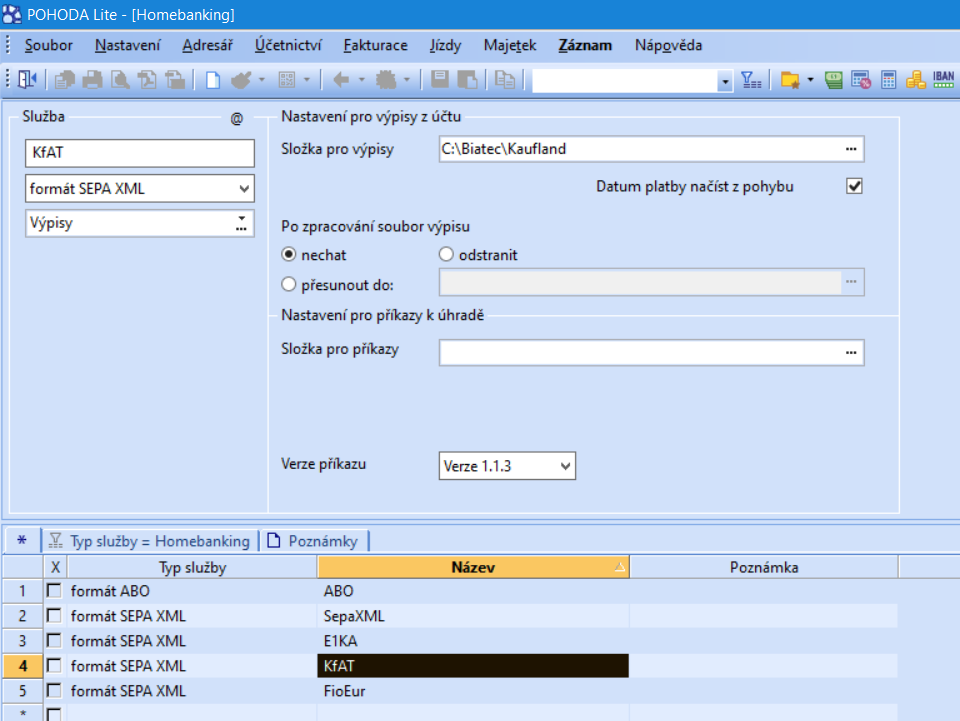
First, you need to create a home banking channel through which POHODA will retrieve statements. Open Settings → Home Banking and fill in the following information:
| Service (abbreviation) | Any abbreviation, e.g. KfAT (max 4 characters) |
| Type | SEPA XML Format |
| Type | Statements |
| Folder for statements | Path to the folder where you will save the downloaded SEPA XML files from Biatec.cz |
| Load payment date from transaction | Check — dates will be loaded from individual transactions in the statement |
2 Add a bank account
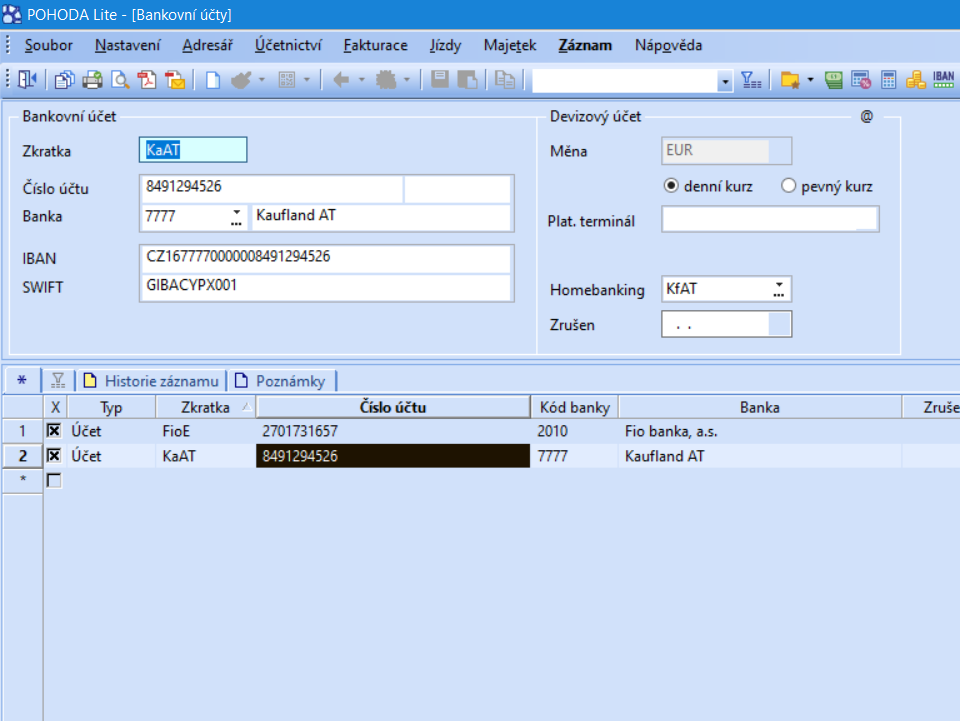
Next, you need to set up the bank account in POHODA that will be used for the import. Open Settings → Bank Accounts and fill in:
| Abbreviation | Account abbreviation, e.g. KaAT |
| Account number | Bank account number in national format |
| Bank | Bank name |
| IBAN | International Bank Account Number — must exactly match the IBAN in the SEPA XML file! |
| SWIFT / BIC | Bank SWIFT code |
| Currency | Account currency (e.g., CZK, EUR) |
| Online Banking | Select the service created in step 1 |
3 Import the transformed statement
After setting up the home banking channel and bank account, you can import statements. The procedure is as follows:
- On Biatec.cz, download the transformed file in SEPA XML format (CZ or SK version depending on your bank)
- Save the downloaded XML file to the folder you set up in step 1 (Statements Folder)
- In POHODA, open the Bank module
- Click on Operations → Import Statements
- Select the file from the list and click Next
- POHODA will display the settlement result — check the number of imported transactions
3.1 Starting the Import
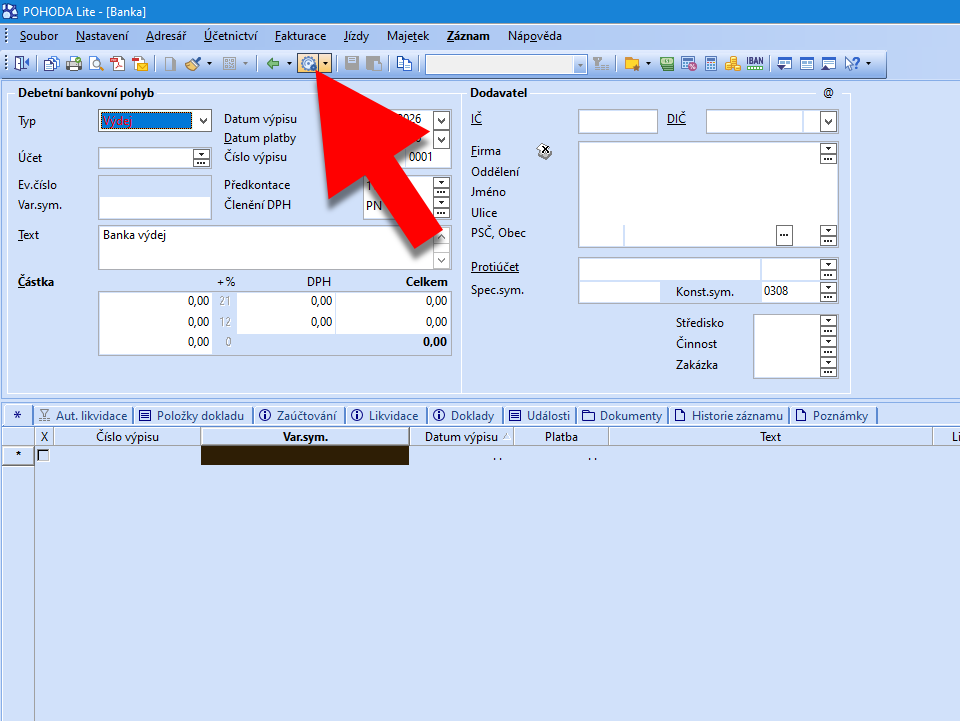
In the Bank module, select Operations → Import Statements:
3.2 Selecting files
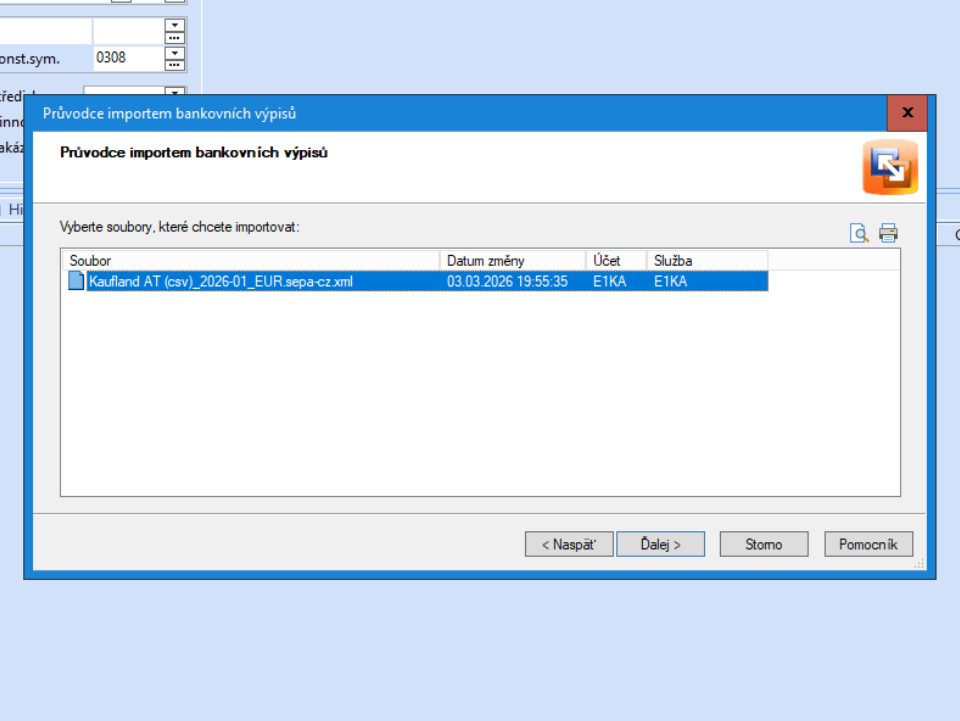
In the dialog, select the files to import. POHODA automatically finds the files in the specified folder:
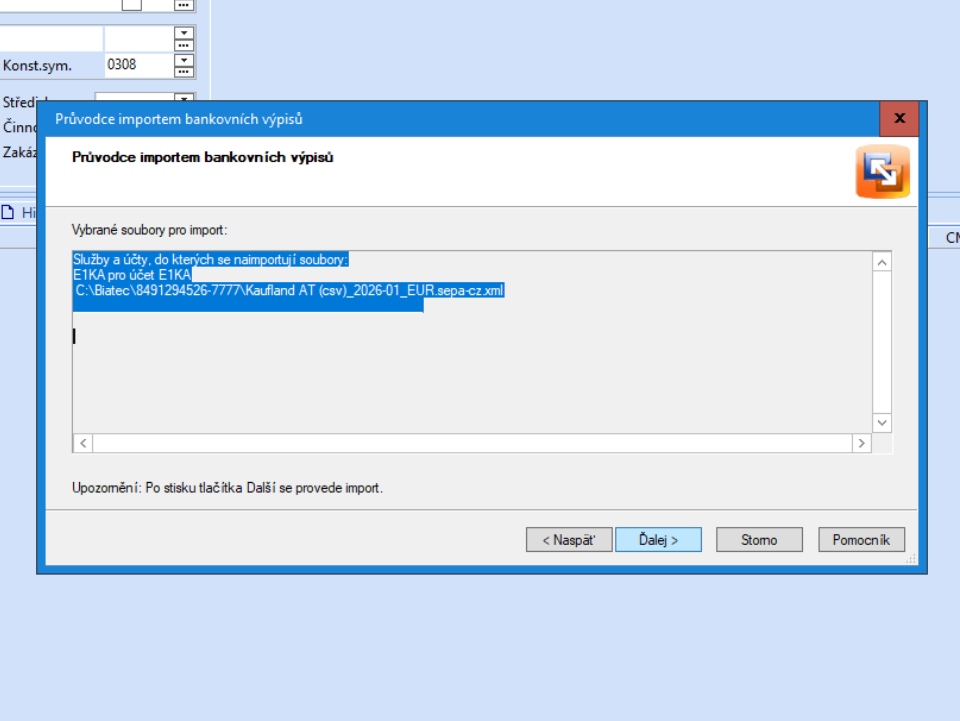
3.3 Confirming the import
Confirm the file selection and start the import:
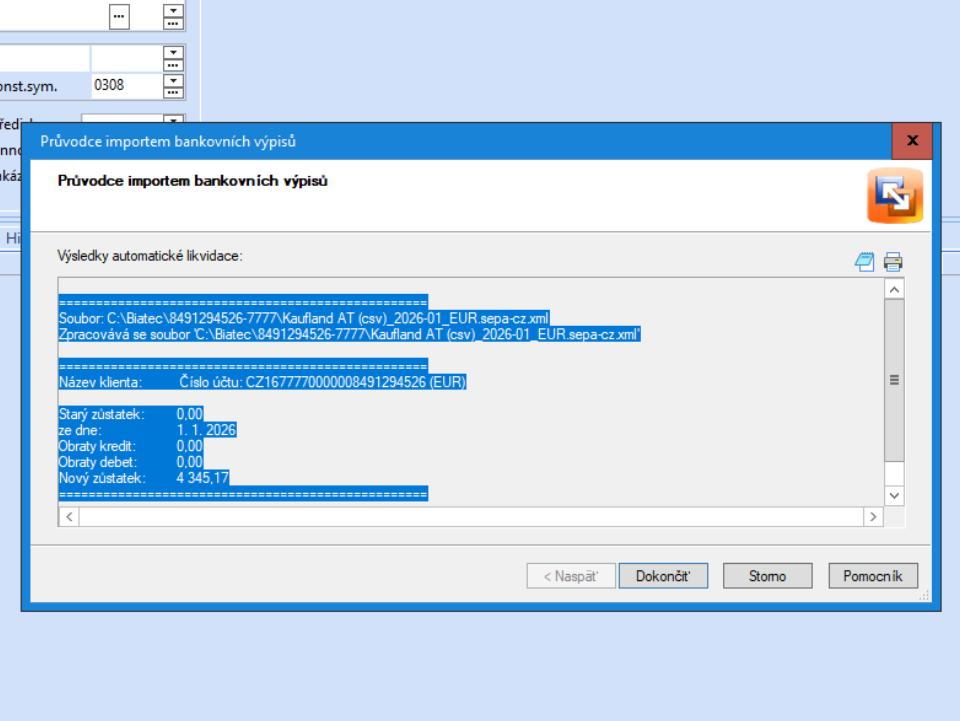
3.4 Import result
After the import is complete, POHODA displays the settlement result with the number of successfully imported records and any error records:
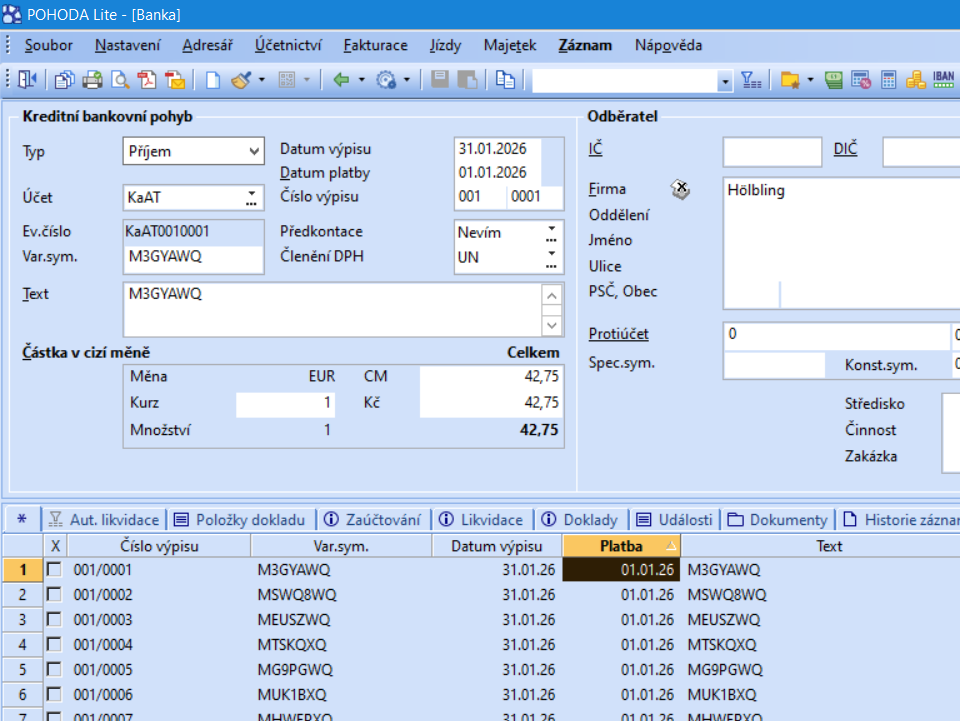
3.5 Imported transactions
After a successful import, the transactions will appear in the Bank module. You can then link them to invoices and cash registers:
Notes and Troubleshooting
Common issues
| Problem | Solution |
|---|---|
| POHODA reports an invalid IBAN | Check that the IBAN in the bank account settings in POHODA exactly matches the IBAN in the SEPA XML (including spaces) |
| Statement not found in the folder | Verify the path to the folder in the Homebanking service settings and check that you saved the file in the correct location |
| File format error | Make sure you downloaded the SEPA XML format (not GPC). On Biatec.cz, select the SEPA CZ or SEPA SK button |
| Duplicate transactions | POHODA checks for duplicates based on date and amount. If you import the same file twice, the duplicates will be marked |